¶ Email Reading Settings
- To change email reading settings, log in to Sibly Webmail using your email account credentials at: https://webmail.sibly.pro/
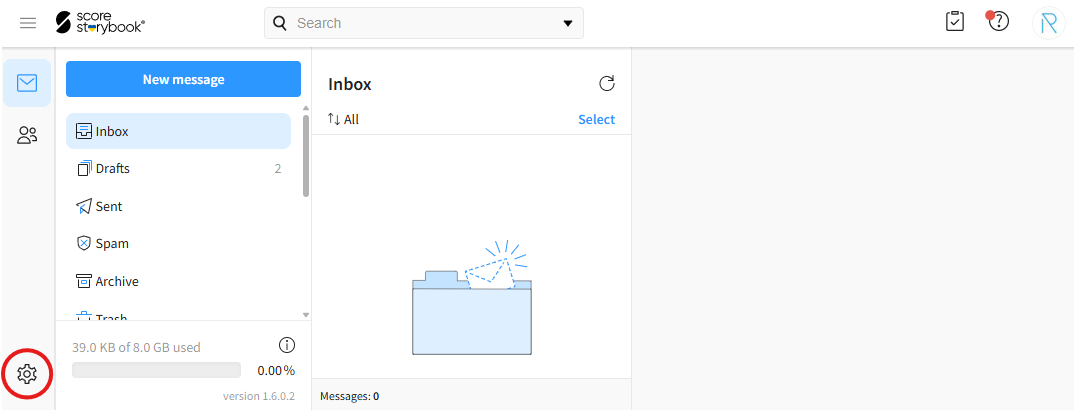
- Click the gear icon in the bottom-left corner of the page.
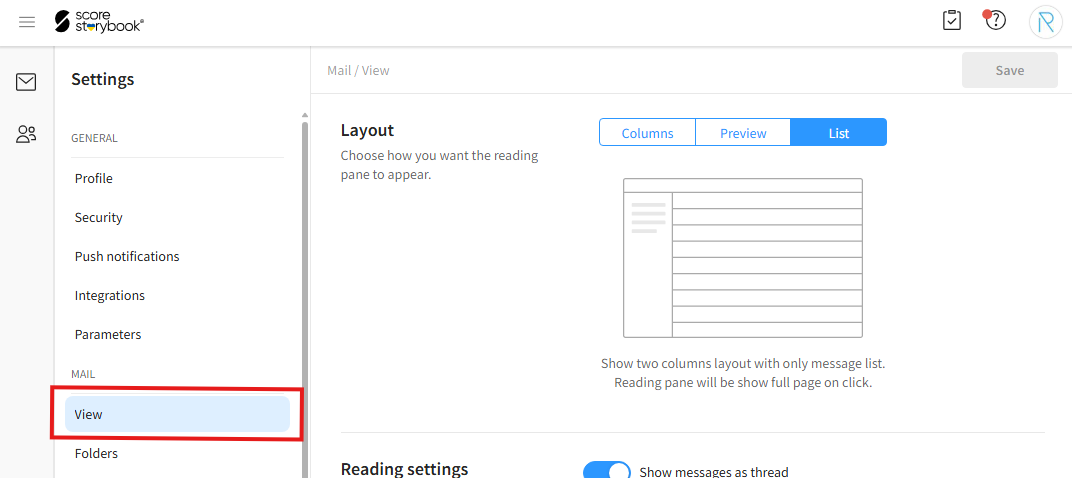
- Click on the "View" option.
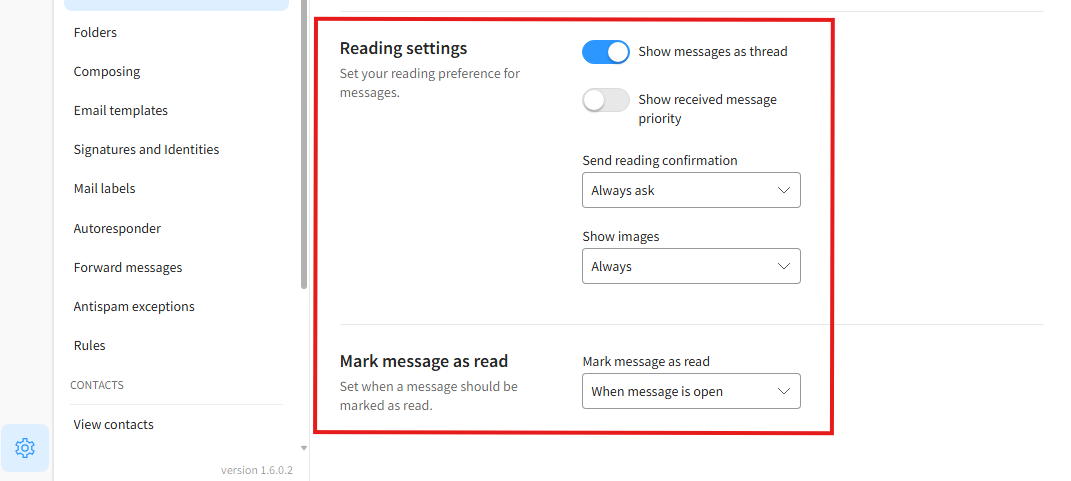
- Navigate to the "Reading settings" and "Mark message as read" sections. Here, you can configure read receipts, message priority display, image display, and message read status settings.
"Show messages as thread" - Displays email replies as a single conversation thread.
"Show received message priority" - Displays the priority level of incoming messages.
"Send reading confirmation" - Sends a read receipt to the sender. "Never" never sends read receipts. "Always" always sends them. "Always ask" prompts you separately for each message.
"Show images" - Controls whether images contained in messages are displayed. "Never" does not display images. "Always" always displays images. "Contacts and trusted" displays images only in messages from saved contacts or trusted senders.
"Mark message as read" - Controls when messages are marked as read. "When message is open" marks a message as read immediately after opening it. "Manually" disables automatic read marking, requiring you to mark messages as read manually. The remaining options mark messages as read automatically after the selected number of seconds.
- After making your changes, click the blue "Save" button in the top-right corner of the window.