¶ Identities and Signatures
- To manage Identities and Signatures, log in to Sibly Webmail using your email account credentials at: https://webmail.sibly.pro/
- Click the gear icon in the bottom-left corner of the page.
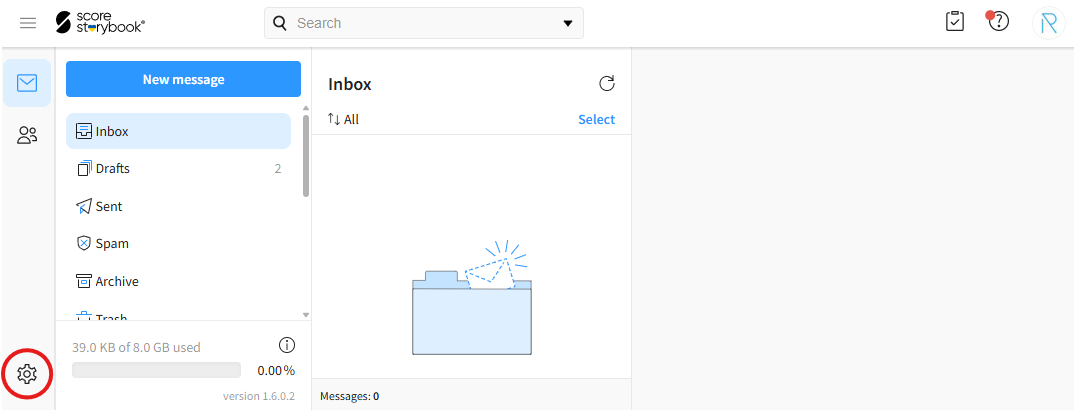
- Click on the "Signatures and Identities" option.
¶ Editing Identities and Signatures
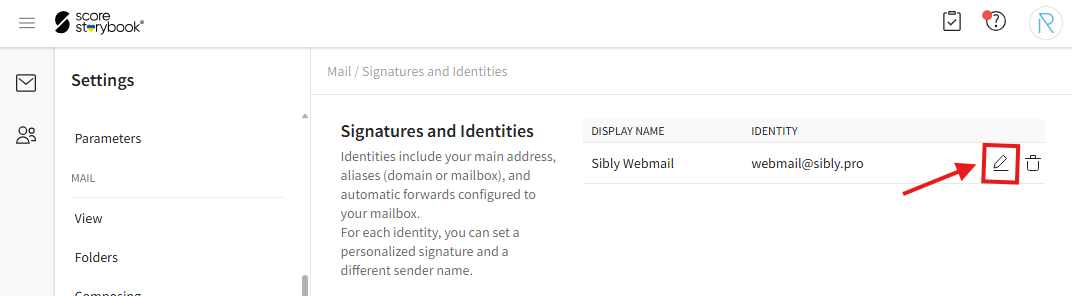
- To edit an identity or signature, click the pencil icon next to the desired identity.
- In the opened window, enter the desired information.
"Signature text" - Signature text. This is automatically added to the end of each outgoing email.
"Add sender in Bcc" - Adds the sender as a Bcc recipient.
"Don't add signature on replies" - Do not add the signature to replies. When enabled, the signature is only added to the first outgoing message and not to any replies.
"Add Bcc recipients" - Bcc email addresses.
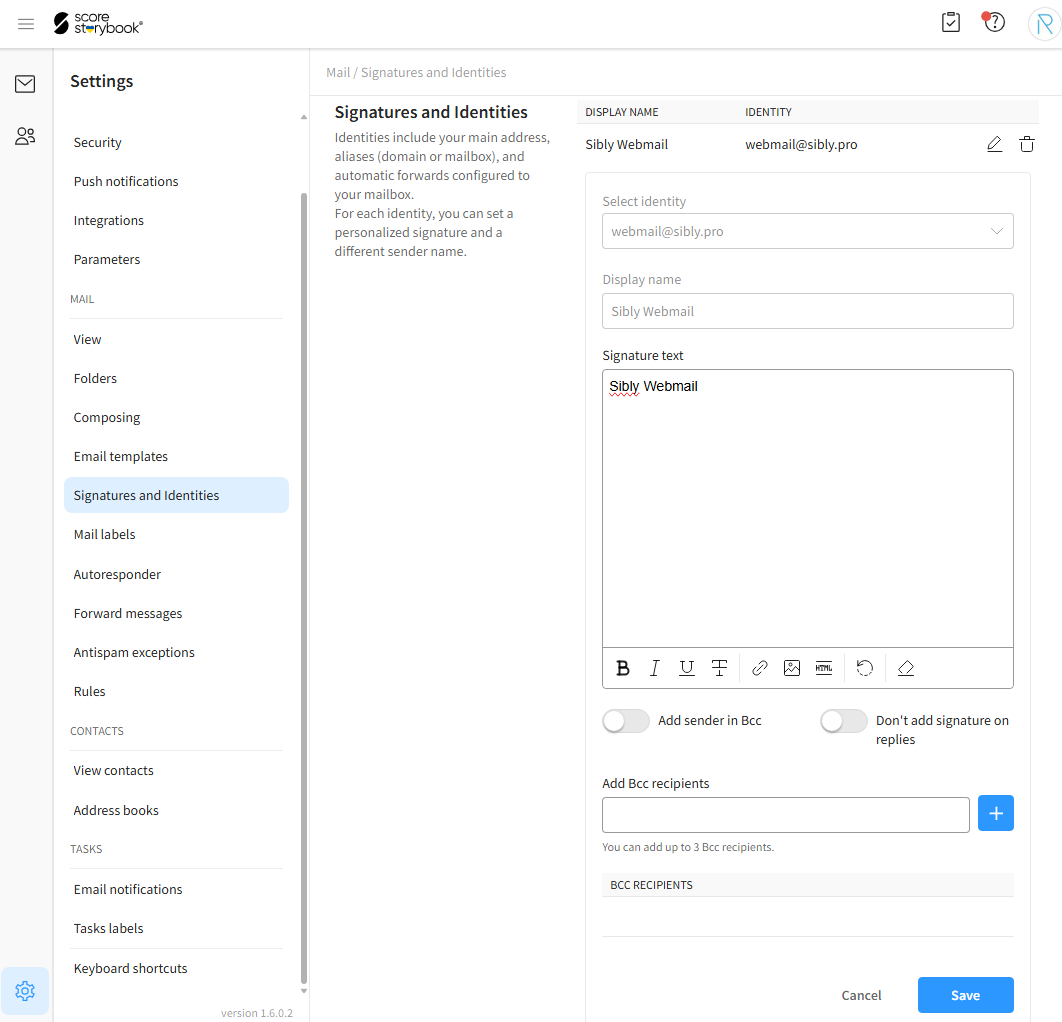
- After entering the information, click the blue "Save" button.
¶ Deleting Identities and Signatures
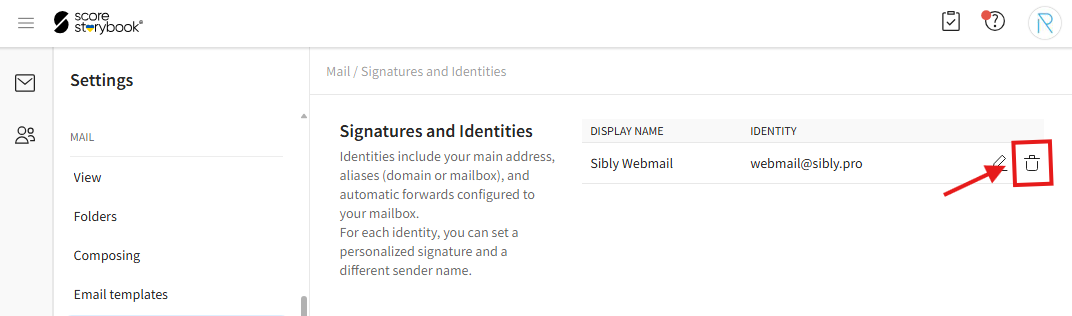
- To delete an identity or signature, click the trash can icon next to the desired identity and then click "Delete" in the confirmation window.
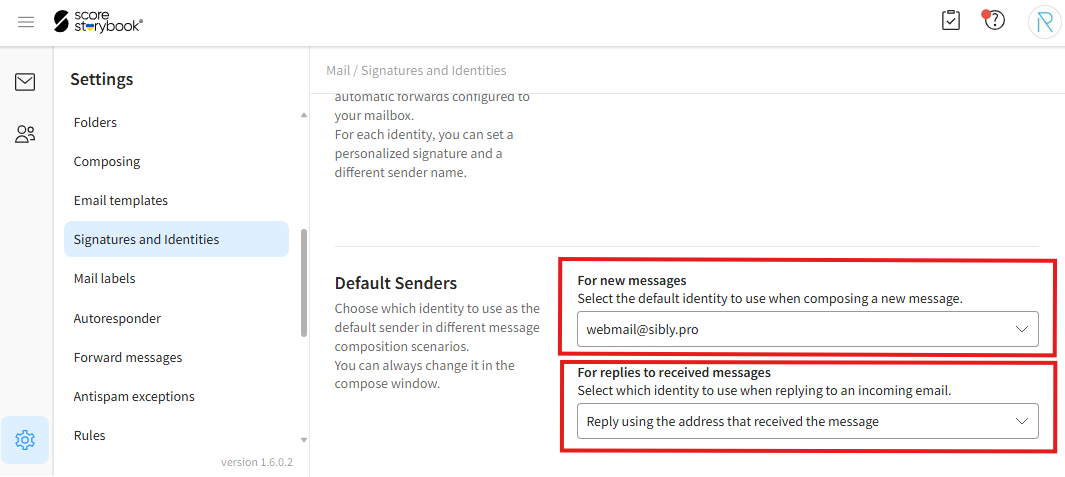
¶ Default Senders
- To change the default sender settings for outgoing emails, navigate to the "Default Senders" section.
"For new messages" - Default sender identity for new messages.
"For replies to received messages" - Default sender identity for replies. The option "Reply using the address that received the message" always uses the same identity that originally received the message when sending a reply.