- To manage your address books, log in to Sibly Webmail using your email account credentials at: https://webmail.sibly.pro/
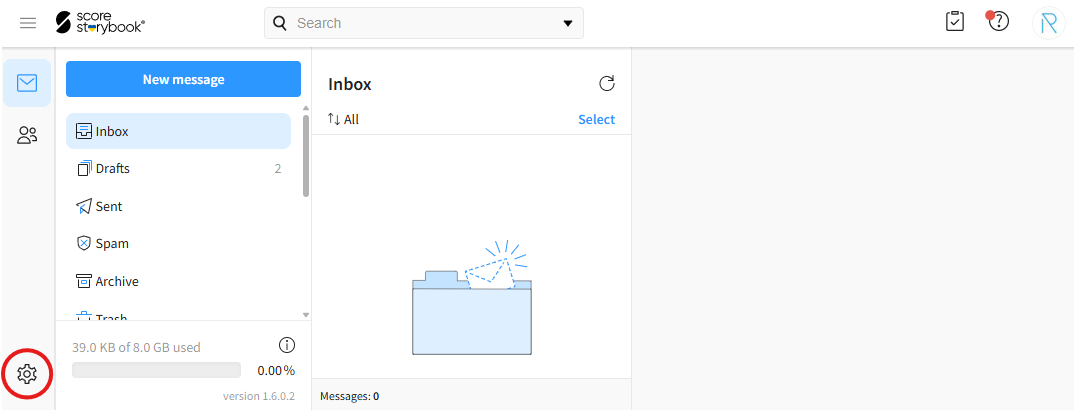
- Click the gear icon in the bottom-left corner of the page.
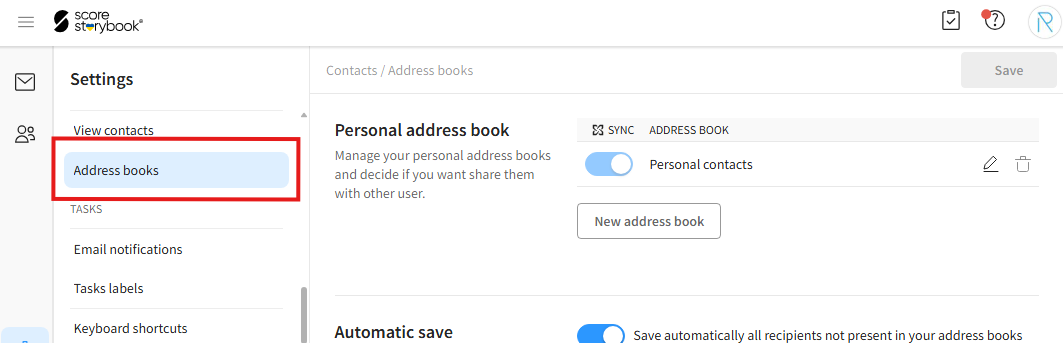
- Click on the "Address books" option.
- After making your changes, click the blue "Save" button in the top-right corner of the window.
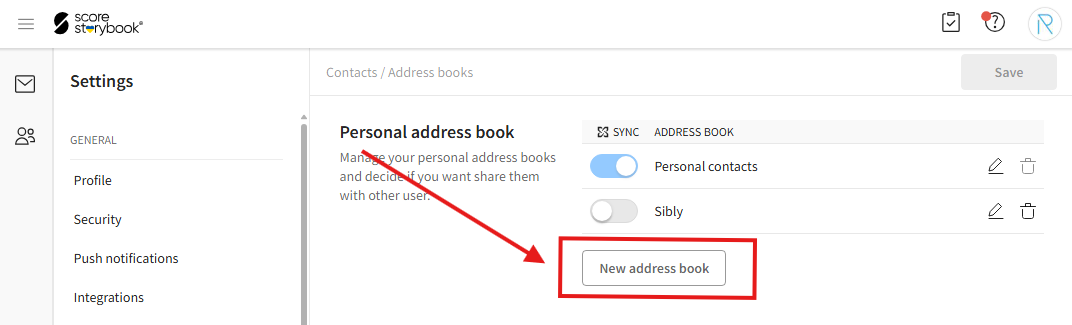
- To create a new address book, click the "New address book" button.
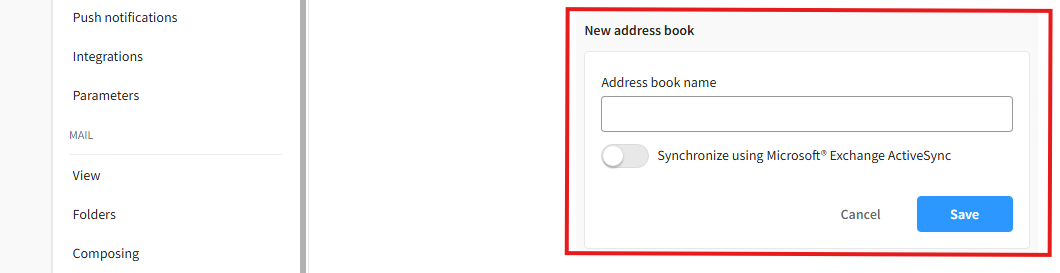
- In the opened window, enter the desired information and click "Save".
"Address book name" - The name of the address book.
"Synchronize using Microsoft Exchange ActiveSync" - Synchronizes the address book using Microsoft Exchange ActiveSync.
¶ Editing and Deleting an Address Book
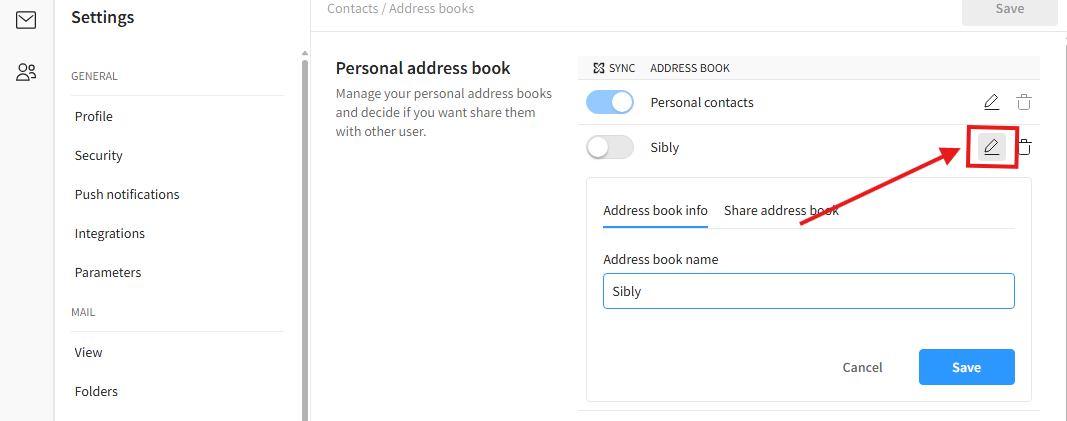
- To edit an address book, click the pencil icon. In the opened window, you can change the name of the address book. After making your changes, click the blue "Save" button.
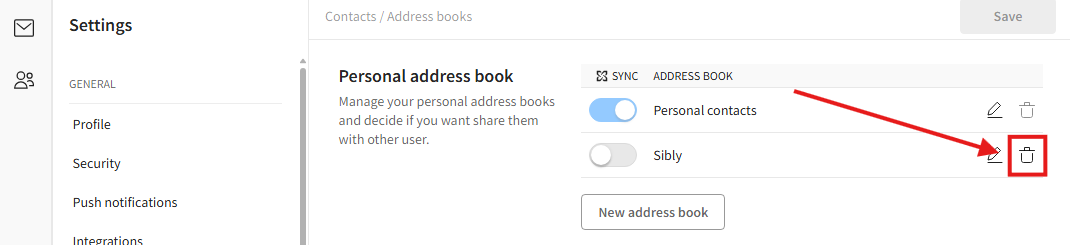
- To delete an address book, click the trash can icon and then click "Delete" in the confirmation window.
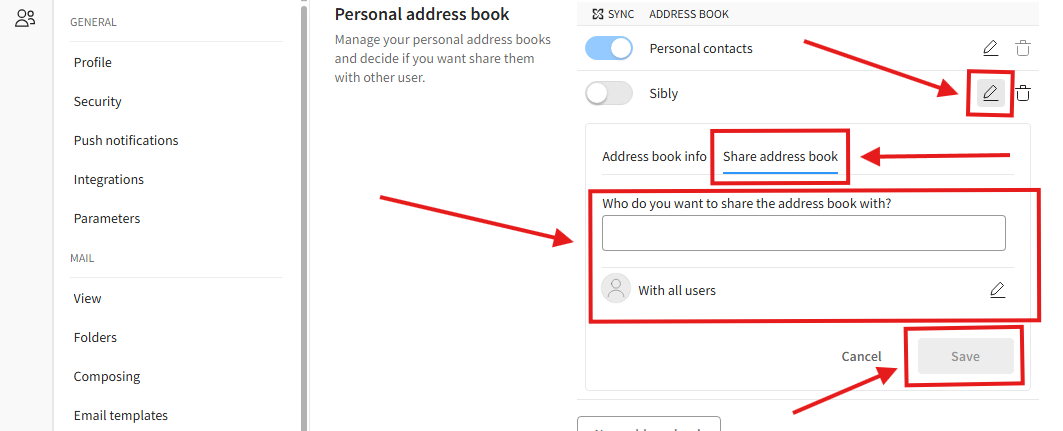
- To share an address book, click the pencil icon. In the opened window, select "Share address book" and choose the user with whom you would like to share the address book. The "With all users" option shares the address book with all users. After making your changes, click the blue "Save" button.
- To automatically save recipients of outgoing messages to an address book, enable "Save automatically all recipients not present in your address books" in the "Automatic save" section and select the address book where new contacts should be saved automatically.

- You can search for shared address books in the "Shared address book" section. Enter the email address of the desired contact to view the address books they have shared.
