- To manage Organization Rules, log in to Sibly Webmail using your email account credentials at: https://webmail.sibly.pro/
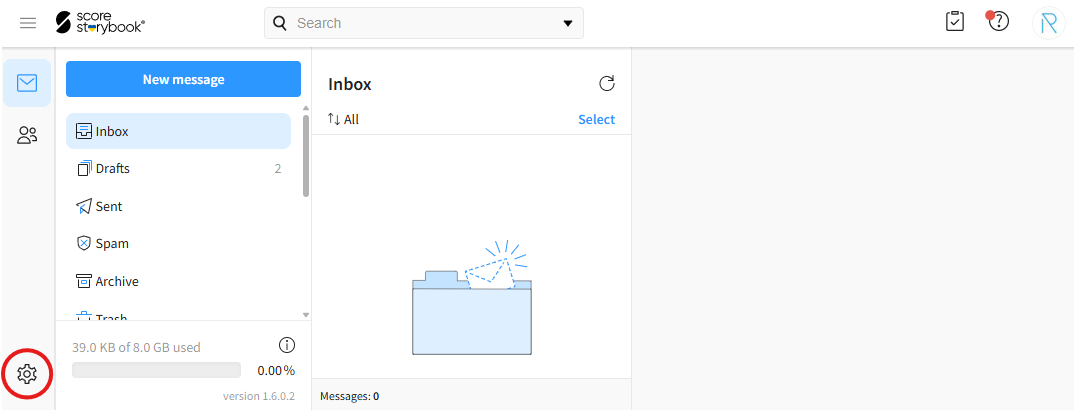
- Click the gear icon in the bottom-left corner of the page.
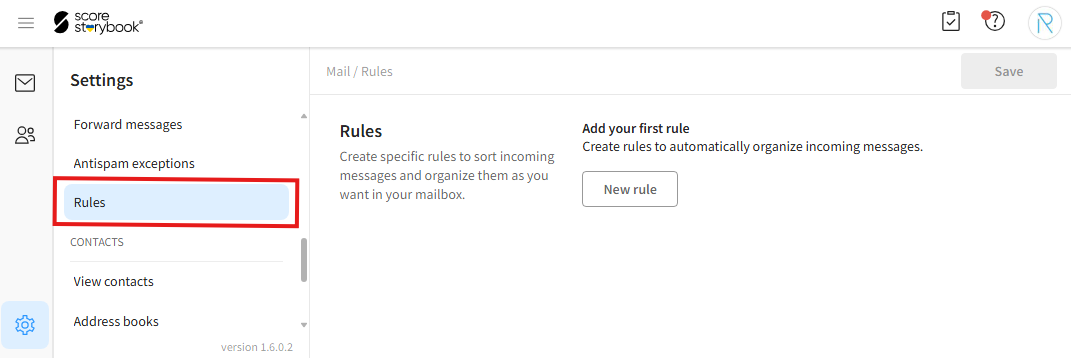
- Click on the "Rules" option.
- After making your changes, click the blue "Save" button in the top-right corner of the window.
- To create a new rule, click the "New rule" button.

- Enter the desired information.
"Rule name" - The name of the rule.
"Satisfy all parameters" / "Satisfy at least one parameter" - With "Satisfy all parameters", the rule is applied only if all specified conditions are met. With "Satisfy at least one parameter", the rule is applied if at least one of the specified conditions is met.
"Parameters" - The conditions of the rule. To add a condition, click "Add parameter" and configure the desired rule condition. To remove a condition, click the red minus (-) button.
"Actions" - The actions that will be performed when the rule is triggered. To add an action, click "Add action" and select the desired action from the list. To remove an action, click the red minus (-) button.
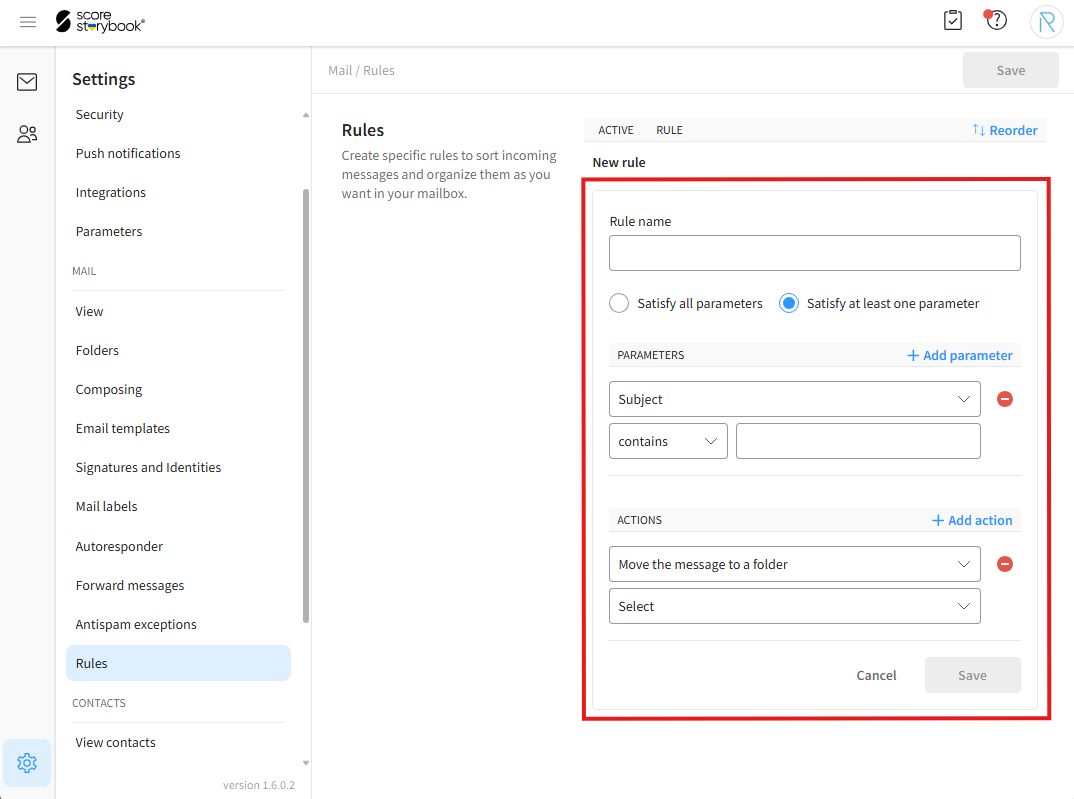
- After entering the desired information, click the blue "Save" button.
¶ Editing and Deleting Rules
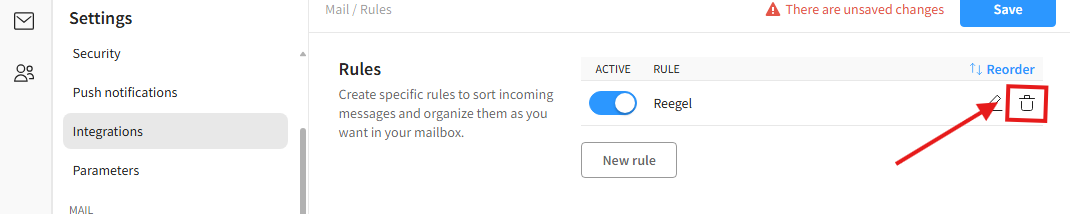
- To edit a rule, click the pencil icon. The rest of the process is the same as when creating a new rule. To cancel, click "Cancel".
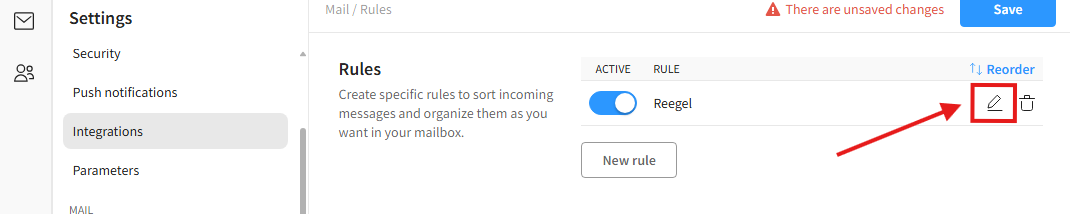
- To delete a rule, click the trash can icon.