¶ 💻 Setting up email in Gmail
This guide will help you set up your email in Gmail.
¶ 🧾 What you need
- Your email address
- Your password (provided when the service was created)
- Server settings
¶ Setting Up Outgoing Email
-
Open Gmail
-
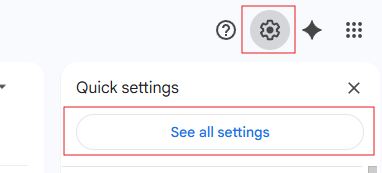
Click the settings icon and select "See all settings"
-
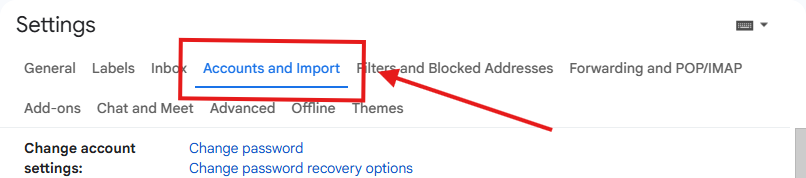
Open the "Accounts and Import" tab
-
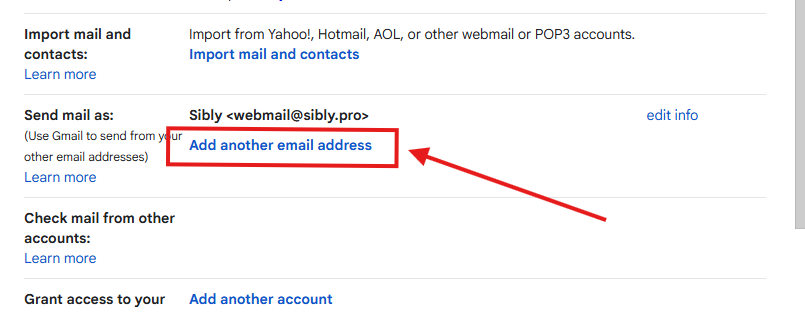
To configure outgoing email, click "Add another email address" in the "Send mail as" section
-
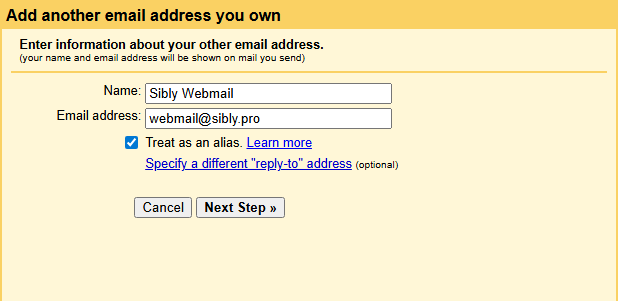
In the opened window, enter your preferred name and your Sibly Webmail email address, then click "Next Step".
-
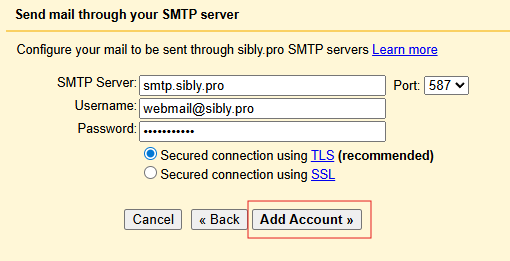
Enter the outgoing mail server settings, , your username (email address), and password, then click "Add Account"
-
Within a few minutes, you will receive a confirmation email containing a verification link. Click the link to confirm the account addition.
¶ Setting Up Incoming Email
- To receive incoming messages in Gmail, you must forward emails from Sibly Webmail to your Gmail address.
- Instructions for setting up email forwarding can be found in the [Email Forwarding Guide](/en/email/email-forwarding).
¶ 👉 Server settings
If needed, use the following server settings:
→ Email server settings